SoundEvent Editor
The SoundEvent Editor reads and writes the active addon's soundevents/soundevents_addon.vsndevts file.
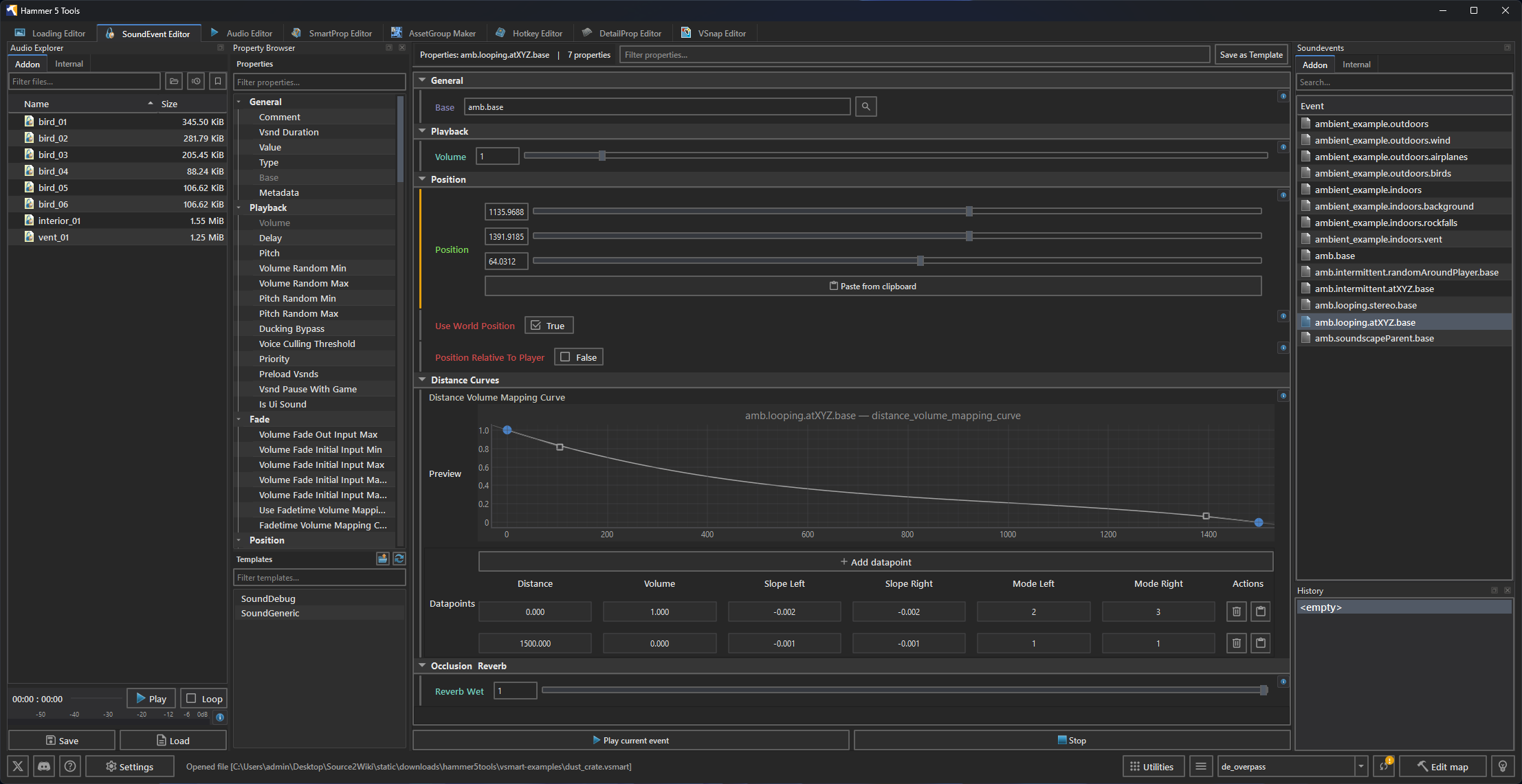
Interface
The editor provides a sound-event hierarchy, property panel, sound explorer, audio player, internal sound-file explorer, internal sound-event explorer, and undo history.
Click Create Default to create the addon's default sound-event file. Click Load File to open another .vsndevts file. Save changed files before switching addons or closing the tab.
Hierarchy
Use the context menu to create, duplicate, copy, paste, or remove entries. The hierarchy supports Ctrl+D to duplicate, Delete to remove, Ctrl+C and Ctrl+V to copy and paste, and standard undo/redo shortcuts.
Choose Save as Template to store the selected event structure. Create a new event from that template through the property browser.
Properties
Select an event to edit it in the property panel. Use the property filter to find a field. Use the property browser to add a property supported by that event.
The History panel records edits to the open file. Use it with undo and redo to return to an earlier state.
Live preview
With  Counter-Strike 2 running and reachable over the console command pipe, the editor can send
 snd_sos_stop_all_soundevents followed by snd_sos_start_soundevent <name> to preview the selected event.
See FAQ and troubleshooting when the game does not respond.
Audio files
Use the Audio Editor to edit WAV source audio, then add the relevant sound path to the event's properties.
The CS2 Looping music guide walks through both editors to build a synchronized looping sound event.
The Sound Explorer plays addon audio through the built-in player. The Play on Click setting controls whether selecting a sound starts playback.
Click an internal SoundEvent to preview it in the game. Double-click it to inspect its properties. Choose Copy to Addon to copy the event into the active addon's sound-event file.