Hotkey Editor
Hotkey Editor creates and applies keybinding presets for the  Counter-Strike 2 tools.
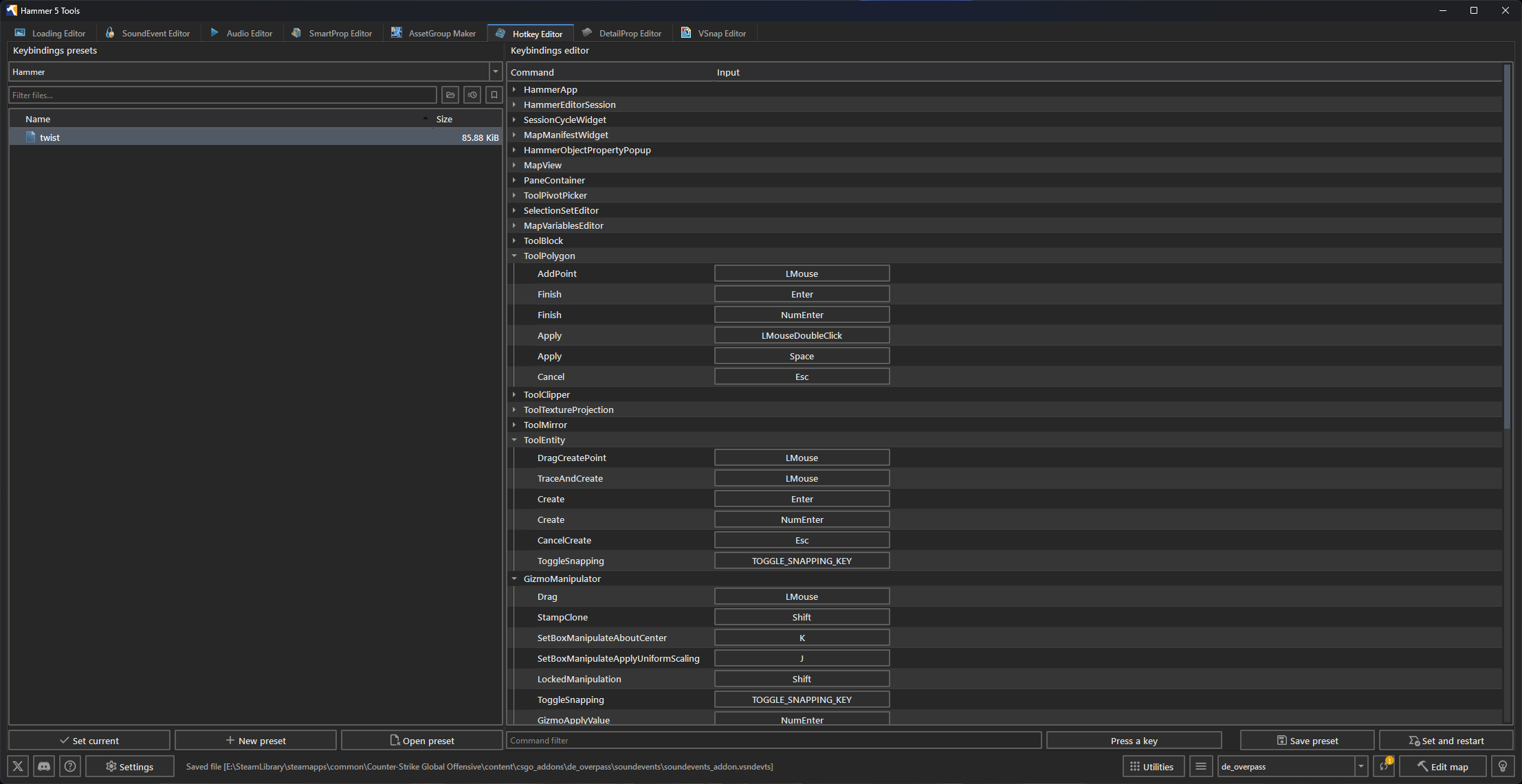
Choose an editor
Select the target editor above Keybindings presets. The available targets include Hammer, ModelDoc Editor, AnimGraph Editor, Particle Editor, Post Process Editor, Subrect Editor, Asset Browser, Property Editor, Workshop Manager, Shared Tool, Help System, and Global.
Presets are stored separately for each target.
Open or create a preset
Select a preset in the left panel and click Open preset. Click New preset to create a preset from the target editor's default bindings.
The binding tree groups commands by their Source 2 context. Use Command filter to find a command. Use the Input filter to find commands assigned to a key.
Change a binding
Click the current key beside a command. In Change keybinding, select a named input or press a key. Enable Ctrl, Shift, or Alt when the binding needs a modifier.
Clear the input to leave the command unbound. Check the filtered tree for another command using the same input.
Save and apply
Click Save preset or press Ctrl+S to update the open preset.
Click Set current to copy the selected preset into the Counter-Strike 2 tools keybinding folder. The new bindings take effect after that editor restarts.
Click Set and restart to save the open preset, apply it, and restart the Counter-Strike 2 tools.
Restarting closes the running Counter-Strike 2 tools. Save work in Hammer and the other tools first.