AssetGroup Maker
AssetGroup Maker creates a set of Source 2 assets from files in one folder. Each .hbat profile stores the input rules, templates, replacements, and output directory.
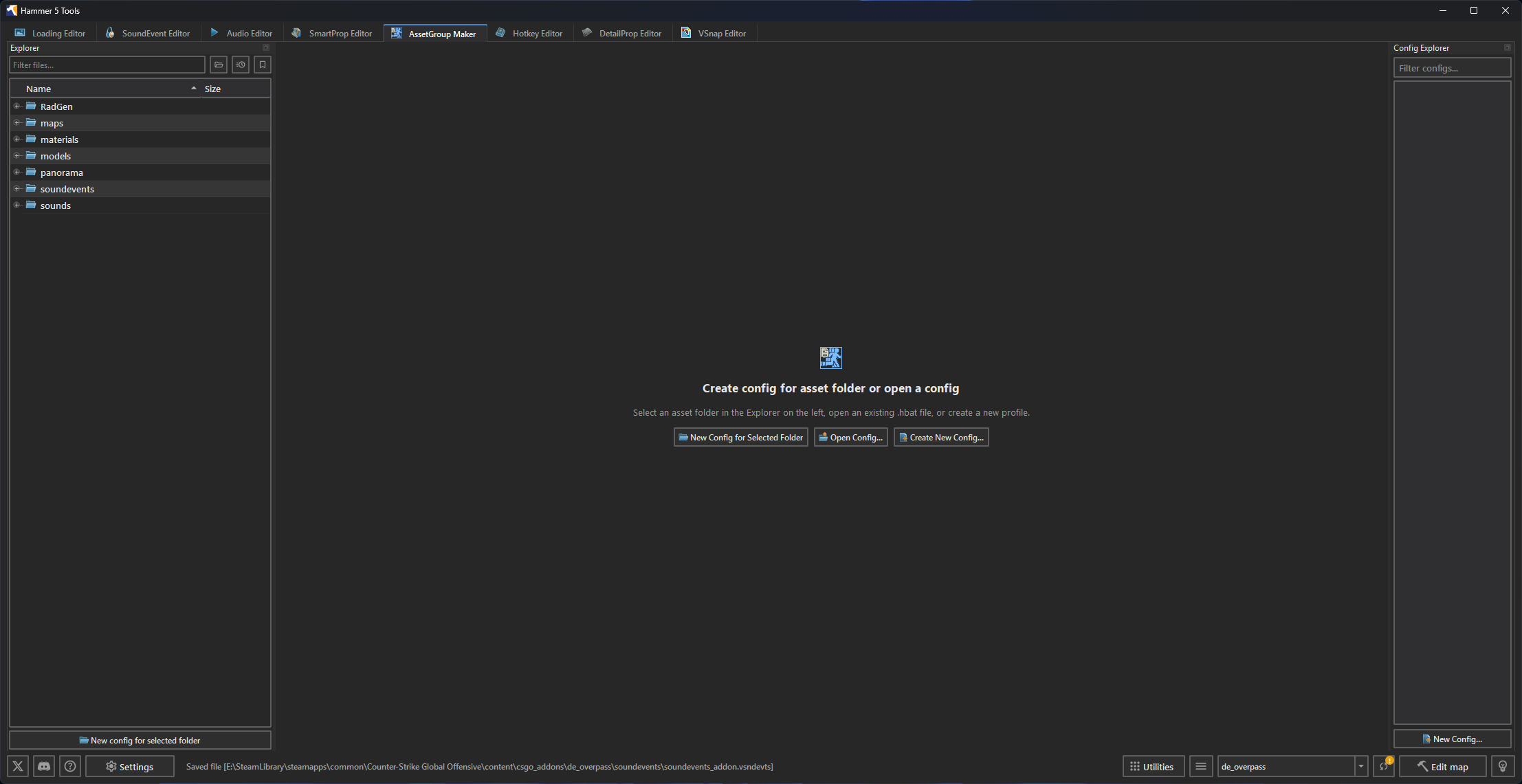
Create or open a profile
Select a folder in Explorer and click New Config for Selected Folder. Use Create New Config... when the profile belongs somewhere else. Use Open Config... to open an existing .hbat file.
Each profile opens in its own tab. Use Ctrl+S or Save to save the current profile.
Templates
Select a reference asset through Asset Browser... or Browse.... Click the adjacent  Counter-Strike 2 button to open the reference in its Source 2 editor.
Click + Add Template to create more than one output for each input asset. Templates can create VMDL, VMAT, VSMART, and other text assets supported by the processor.
Click Edit Slot Mappings... to map companion files and replacement tokens. For an FBX template, click Research FBX Materials to read its material slots. Map each source slot to a VMAT or add a remap with + Add Remap.
Use Exclude (Blacklist) to skip matching extensions and file names. Use Include (Whitelist) to process only the listed extensions and files. Global filters apply to every template in the profile.
Review assets
The asset table shows each input, its selected template, detected slots, target output, and processing status. Use Search, Status, and Template to filter the table.
Right-click an asset to choose Show in Explorer, Open in Counter-Strike 2 Tools, Copy Asset Name, or Copy Output Path.
Process a batch
Set Output Directory when generated files belong outside the input folder. Click Process Batch and review the reported asset count.
Click Revert Batch to delete files created by the last process. Reference templates are kept.
Batch import a mesh kit
AssetGroup Maker batch-generates and synchronizes models instead of requiring manual configuration of each .vmdl file in Hammer.
-
Launch the
Counter-Strike 2 tools through  Hammer 5 Tools so the console command pipe is connected. See FAQ and troubleshooting when launching them from Steam instead.
 -
Place the source FBX files in the addon's content directory, such as
content/csgo_addons/<addon>/models/pipe_kit/.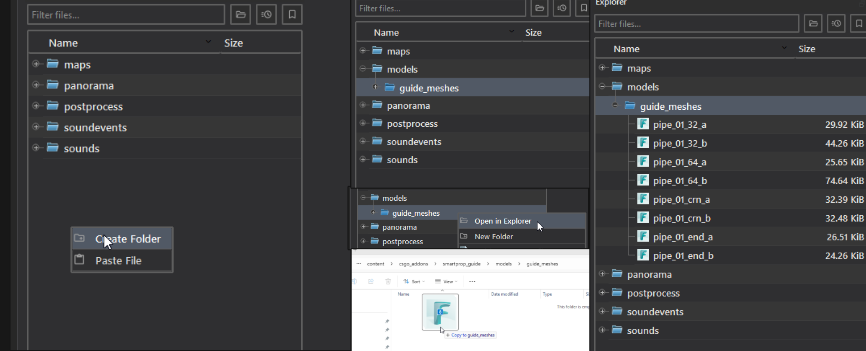
-
Select the FBX files in Explorer, right-click, and choose Quick create vmdl.
-
Select the created model and click Quick AssetGroup file to generate the
.hbatconfiguration. -
Select the
.hbatfile and click Quick process AssetGroup.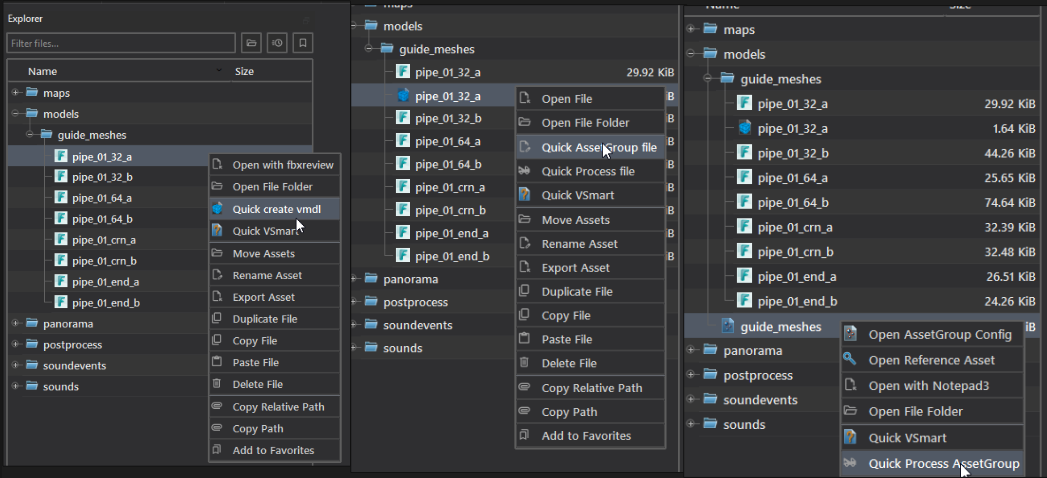
-
The
.vmdlsource files are now generated. Compile them in theCounter-Strike 2 tools before use: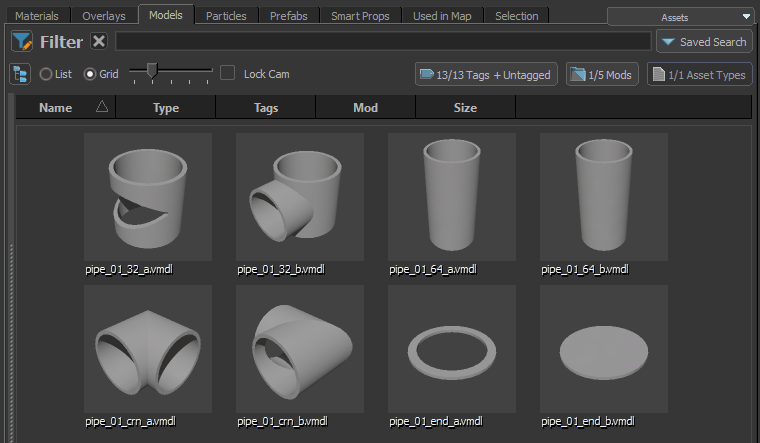
-
Right-click the
.hbatfile and choose Open Reference Asset. Review the generated models after changing collision hulls, physics, or material assignments: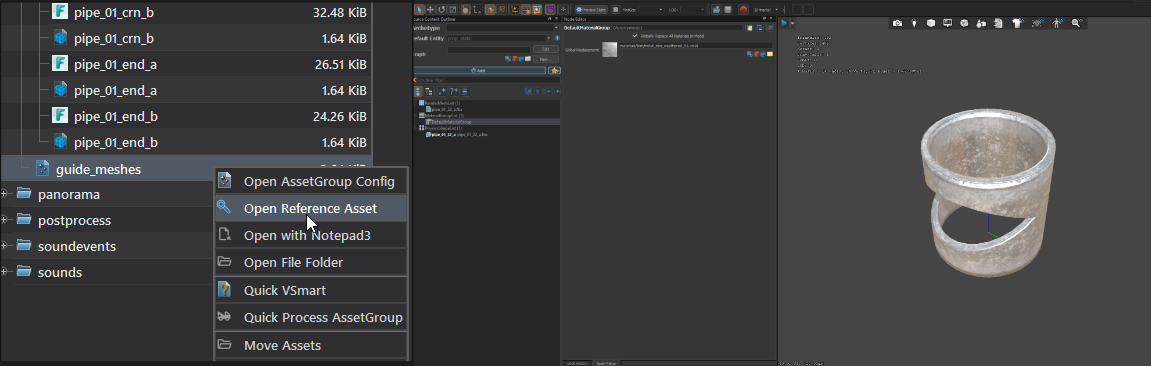

Check the generated files after changing a reference asset.
The Modular pipes with FitOnLine guide uses this workflow to build a pipe kit.
Monitoring
Enable Watch the changes to watch the profile's input files. A changed input is processed again with the saved profile.
Use Settings > AssetGroupMaker > Folders to monitor to control which folders can be watched. Restart Hammer 5 Tools after changing that list.