Advanced Techniques
Manual Import of Models
Some knowledge about Source 1 models will help with the process.
If the source model files are already sourced, then skip this step. If not, then the model files must first be sourced. If the model is a native CS:GO model, use an extractor tool such as GCFscape to extract model files from pak01_dir.vpk found in the csgo/ folder.
As a side note, "model files" in this instance mean a combination of 4 files in total of the same name, where each builds up different model properties. Furthermore, source models from other games can have different numbers of files.
Next, decompile these models to obtain their .smd files, for example by using  Crowbar. More information about how to use the tool is found on the official guide.
From Crowbar, we only need to obtain specific .smd files. Which .smd files to extract depends on the prop and what is required; the list below shows the possible options. If unsure, run everything at default settings.
- All props - only reference mesh SMD file (This is the actual model)
- Props that have collisions - physics mesh SMD file (This is the collision model)
- Props that have animations - bone animation SMD file (This stores model animations)
If successful, the tool outputs some .smd files. Move these into the  Counter-Strike 2 addons folder, keeping the same model directories as CS:GO. The directory of the model can be changed, but for consistency this is not recommended.
Open up ModelDoc and create a new .vmdl file. Afterwards, follow this guide from mapcore to import the decompiled .smd files into ModelDoc. Even though we use different import model files, the process of adding in imported model meshes in ModelDoc is still the same.
If all .smd are imported correctly, the model is now compilable. After compilation, check if all prop properties have been implemented correctly. If applicable, you can now add other properties to the prop and compile again.
Adjusting CSM Properties
Editing CSM properties is by default disabled in csgo.fgd, and as such requires modifying the hammer .fgd.
First, search for the block for light_environment. Afterwards, delete all the lines with (remove_key) in them.
Editing the CSM layer distance is a bit of a give and take; higher distance will increase the reach of the cascade layer at the cost of resolution. A good starting distance values are 1024, 512, 256, and 128 for cascade layers 1, 2, 3, and 4 respectively.
Adding Tree Sways on Foliage Props
This requires use of blender (with a vertex coloring addon, such as Vertex Color Master for Blender, or any modeling software) to change the vertex colors on foliage meshes.
When applying colors to the meshes, red should be used for the general sway of the tree, and blue should be used for individual flutters of leaves. First, apply a gradient from black to red from the bottom to the top of the foliage; darker colors represent less sway. Afterwards, apply blue to the edges of each branches/stems of the foliage mesh
In the end the base of the branches should have a red hue, whilst the end of branches should be blue - refer to the image below.
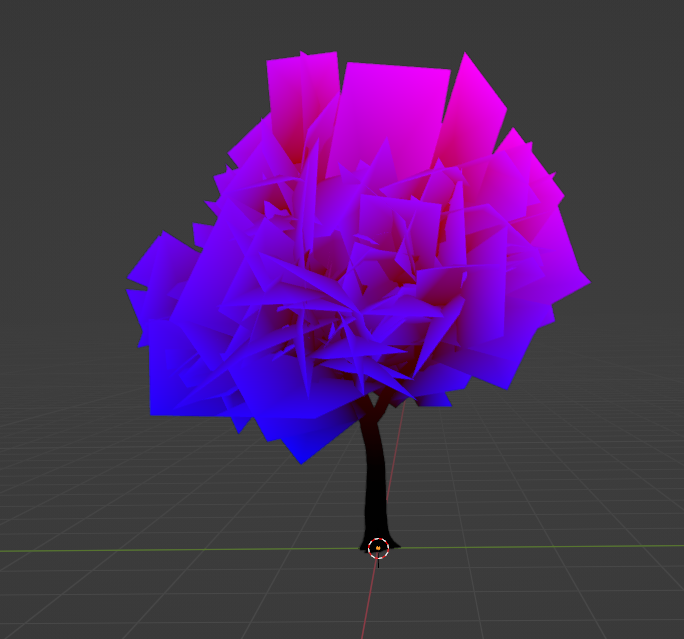 Example vertex coloring on a tree foliage model.
Creating CS2-compatible .svg
It is possible that some .svg’s do not display properly in the loading screen. To briefly describe the problem, the paths (i.e. the shapes) in .svg files can be defined in absolute or relative coordinates. If the .svg is written in relative coordinates, only the first layer will be displayed in Counter-Strike 2; it is presumed that the .svg interpreter in Counter-Strike 2 does not support translating the relative coordinates over the multiple layers.
More technical explanation can be found here.
With a .svg vector editor, the fix is pretty simple. Simply set the preferences of the editor to use absolute coordinates, move the layers a bit so that the .svg can be saved, and it should be fixed immediately in Counter-Strike 2.
Without an editor available, then it is recommended to use this png to svg converter. This will reduce the quality of the map icon, but this is not perceivable on the loading screen itself.