CS2 Looping music
This guide prepares looping music, ambient radios, and soundscapes for  Counter-Strike 2.
This guide is made using  Hammer 5 Tools, with its
Audio Editor for the loop marks and its
SoundEvent Editor for the sound event.
Any editor that writes RIFF cue points and any tool that edits
Hammer 5 Tools, with its
Audio Editor for the loop marks and its
SoundEvent Editor for the sound event.
Any editor that writes RIFF cue points and any tool that edits soundevents_addon.vsndevts will also do.
1. Set up loop marks
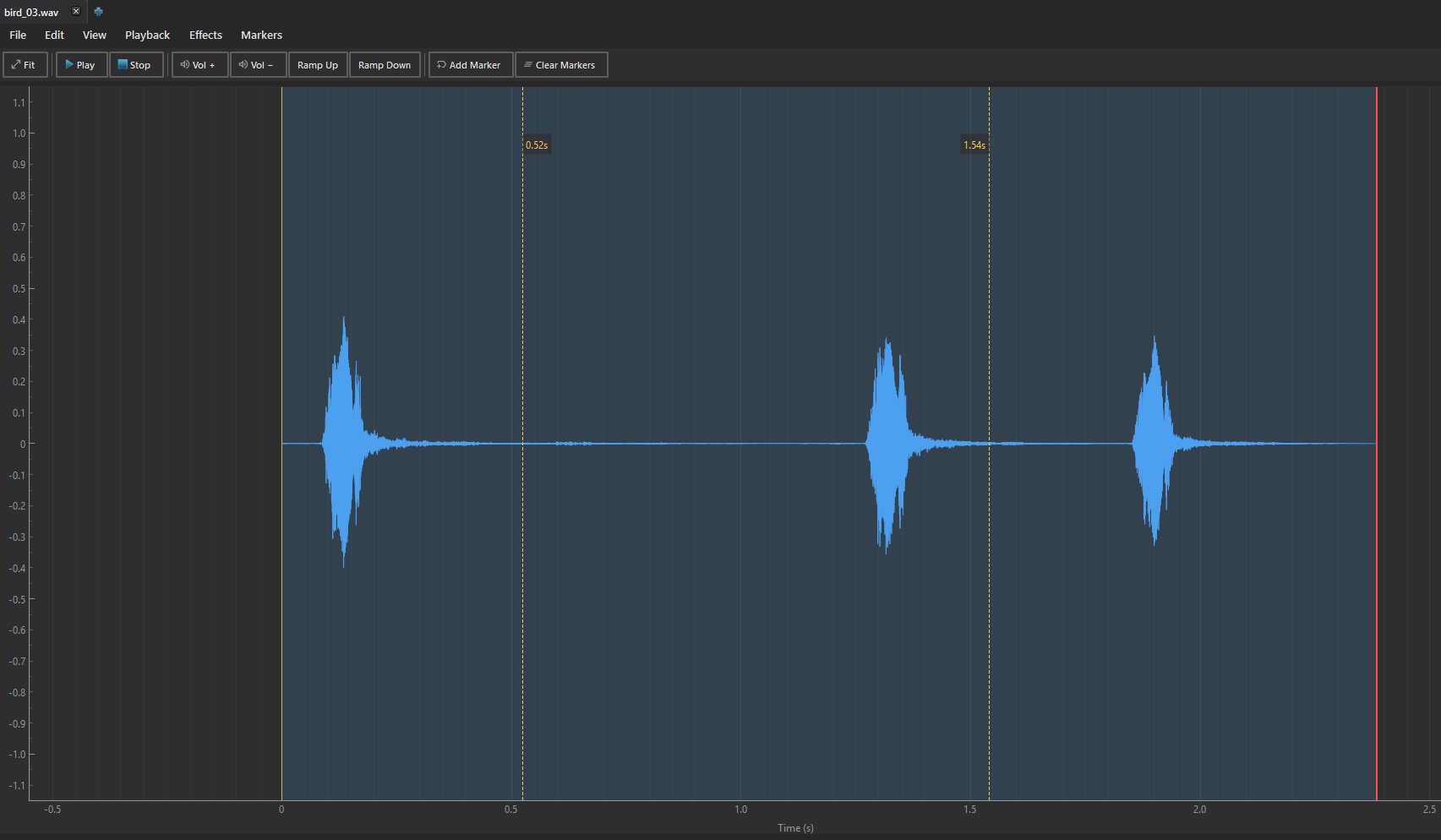
Counter-Strike 2 uses RIFF Cue Markers stored directly within .wav files to determine loop start and loop end boundaries.
To add the marks, use the Audio Editor.
- Double-click the source
.wavor.mp3file in Audio Explorer to open it in the Audio Editor. - Listen to the track and find the loop start and loop end points.
- Press
Mat the loop start and again at the loop end to place the two markers. - Marker 1 and Marker 2 now define the loop region.
- Press
Ctrl+Sto save the file as WAV. The two cue points are written into the WAV header.
2. Create the sound event
-
Open the addon's
soundevents/soundevents_addon.vsndevtsfile. -
Create a new event and name it (for example,
radio.music_loop_01). -
Set the property
type = csgo_mega(orcsgo_music). -
In
vsnd_files, add the saved.wavfile path. -
Create a Distance Volume Mapping Curve to configure hearing distance:
- Near volume:
1.0(at distance 0–100 units). - Far volume:
0.01(at distance 1500 units).
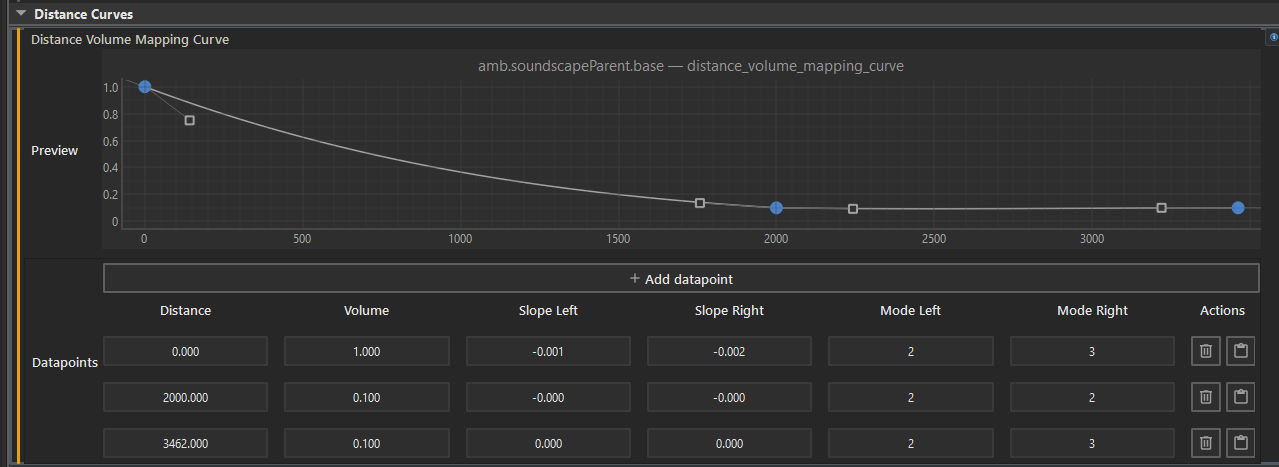
- Near volume:
Why set min volume to 0.01 instead of 0?
If a looping sound event reaches 0.0 volume,
0.01keeps the sound synchronizing across all players even when far away.
3. Place the entity in Hammer
- In Hammer Editor, create a
point_soundevententity. - Set Soundevent Name to the custom event (
radio.music_loop_01). - Set Start On Spawn to
true. - Run or compile the map. The radio music starts and loops in Counter-Strike 2.